Touchscreen
Deneb replaces the stock tap-only menus with a native LVGL UI at 320×240. Unlike stock firmware, Deneb supports vertical swipe scrolling and horizontal drag sliders on Temperature, material workflows, and Frame Lighting. Dragging moves the visible content or control; it does not change screens. Use the on-screen buttons and Back control to navigate.
These captures are layout references with placeholder data, not live printer photos. Click a screen to view it at full size.
Screen catalog
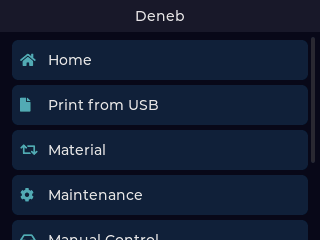
Home
Scrollable root menu. Open Status, Print from USB, Material, Maintenance, Manual Control, Temperature, and Settings.
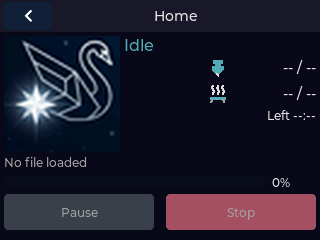
Status
Live print overview: state, nozzle and bed readings, progress, remaining time, active file, position, Pause/Resume, and Stop.
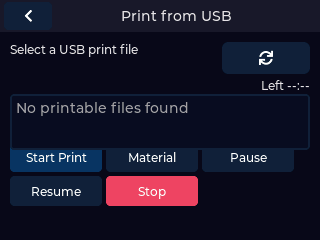
Print from USB
Choose a G-code file from a USB stick, then start, open Material, pause, resume, or stop the job.
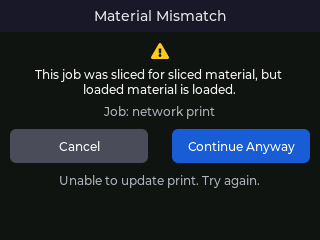
Print conflict
A pending job needs a choice before it can continue. Continue the job or cancel it.
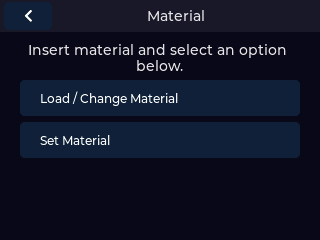
Material
Load, unload, choose a material, move filament, finish movement, import profiles, and set the workflow temperature.
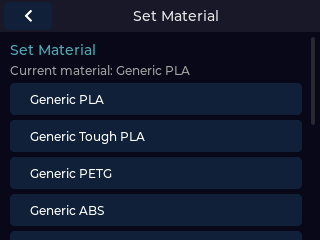
Set Material
Pick the installed material profile from the catalog.
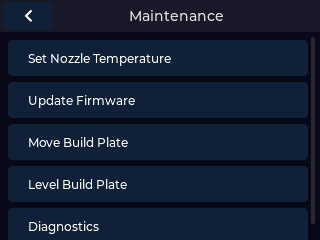
Maintenance
Temperature, Update Firmware, Move Build Plate, Level Build Plate, and Diagnostics.
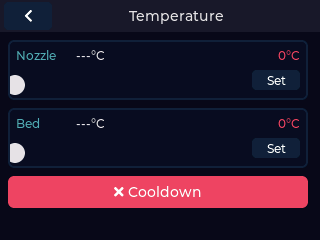
Temperature
Drag the nozzle and bed targets, apply them, or cool down both heaters.
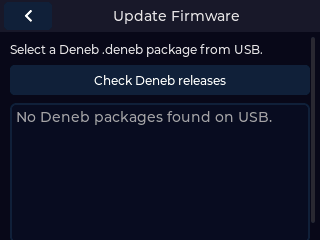
Update Firmware
Lists USB .deneb packages. Select a package, then tap again to confirm. This screen does not install official UltiMaker .img files.
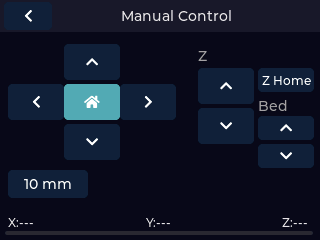
Manual Control
Jog X/Y, home XY, choose step size, home Z, and move the build plate up or down.
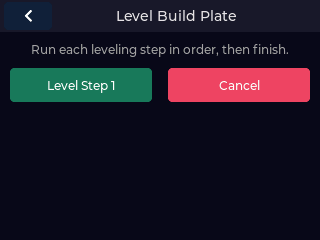
Level Build Plate
Guided leveling. Advance each step with the single action button.
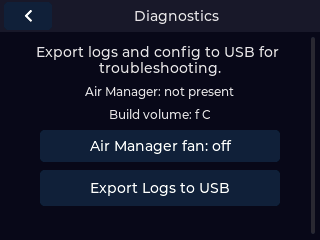
Diagnostics
Hardware summary plus log export to USB, including Air Manager, build-volume, and fan information when present.
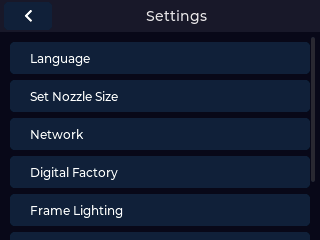
Settings
Language, Nozzle Size, Network, Digital Factory, Frame Lighting, Factory Reset, and About Deneb.
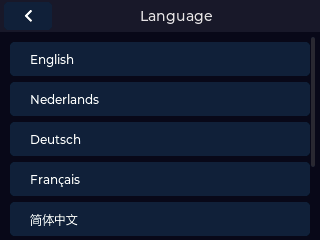
Language
English, Dutch, German, French, Simplified Chinese, Pirate English, or L33T English.
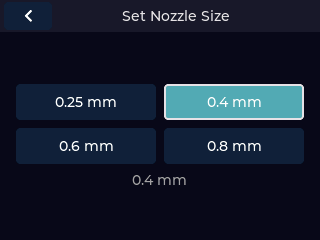
Nozzle Size
Select the installed nozzle diameter.
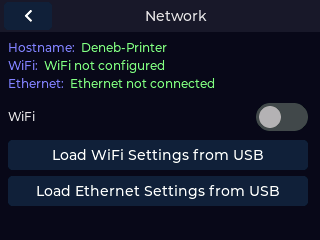
Network
Hostname, Wi-Fi, and Ethernet status. Toggle Wi-Fi, import settings from a USB stick, or reset Ethernet to DHCP. There is no stock captive portal.
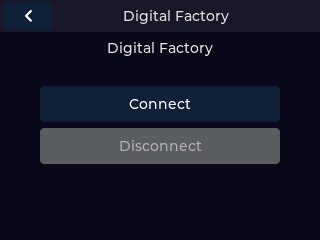
Digital Factory
Connect to start pairing and show a PIN. Disconnect is available only while a cloud session can be ended.
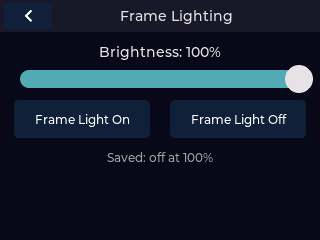
Frame Lighting
Turn the frame light on or off and drag brightness.
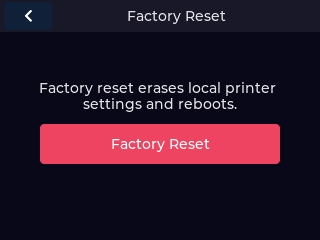
Factory Reset
Tap Reset, then tap again to clear local settings and reboot.
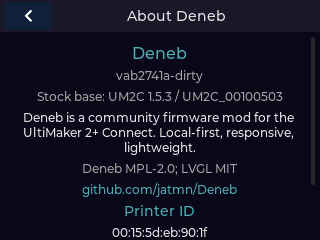
About Deneb
Deneb version, stock base, repository, printer ID, and certifications.
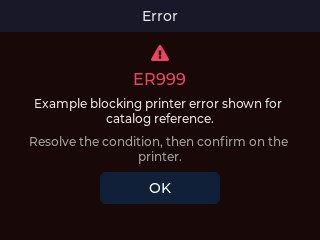
Error
Blocking recovery prompt with an ER code, description, recommended action, and OK to dismiss.
Compared with stock
Stock menus were tap-only. Deneb adds swipe scrolling and drag sliders, puts
Status, Manual Control, and Temperature on the home menu, and uses USB files
for network setup instead of a captive portal. Firmware updates on this UI are
Deneb .deneb packages only.
Network from the panel
Wi-Fi and Ethernet are configured from USB files: